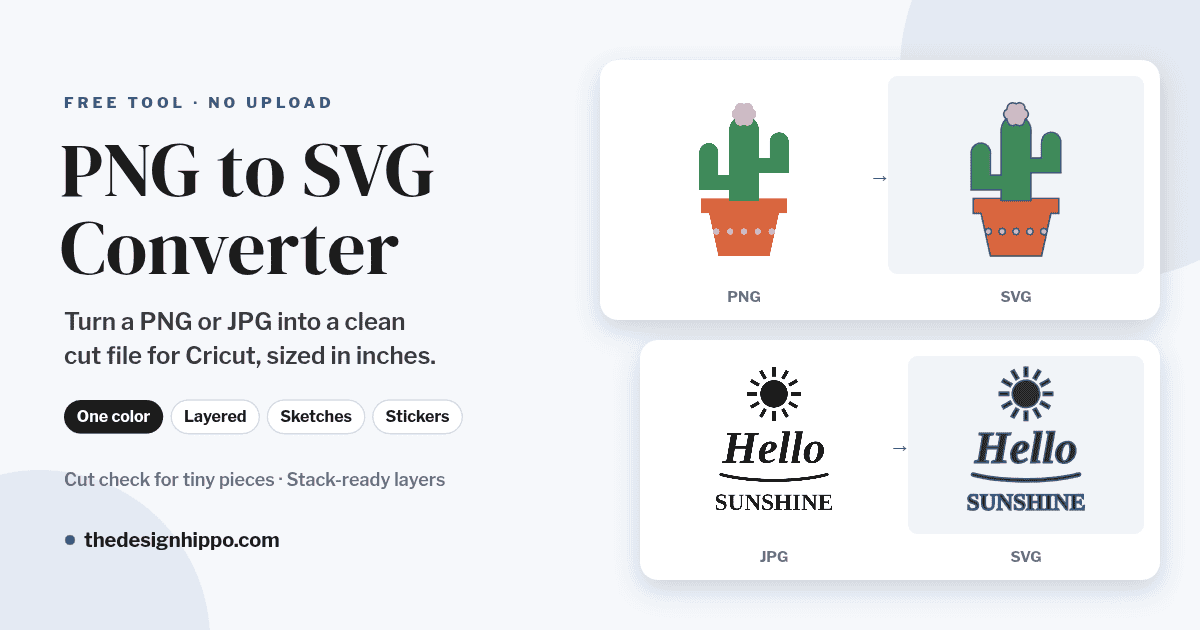
Turn a PNG or JPG into a clean SVG cut file for Cricut or Silhouette. Drop in your image, pick one color or layered colors, set the size you’ll cut, and download.
Free, no sign-up, no watermark. Your image is converted right here in your browser and is never uploaded.
Loading the PNG to SVG converter… If nothing appears, please refresh the page.
How to convert a PNG or JPG to SVG
- Add your image. Drop a PNG, JPG, WEBP or GIF on the converter, paste it, or choose a file. It is converted in your browser and never uploaded.
- Check the mode. The converter picks one for you: One color: whole design for logos and clip art, One color: lines and lettering for drawings and text, or Layered colors for designs with a few flat colors.
- Fine-tune. Drag the Detail slider, remove tiny pieces, or fill holes. Open More settings to pick the background color, boost the contrast or round off corners.
- Set your cut size. Type the width you’ll cut. The cut check warns you about pieces, lines and gaps too small to weed at that size.
- Download. Save the SVG for Cricut Design Space or Silhouette, a transparent PNG, or a sticker PNG with a white border for Print Then Cut.
Use the Split view to compare your image and the SVG side by side, and the Outlines view to see exactly where your machine will cut.
Which images convert best
- Logos, clip art, lettering and drawings with clear, solid edges.
- A plain background, white, black or one color, or a transparent PNG. Busy backgrounds trace as extra shapes.
- Big, sharp files. Use the largest copy you have. Small or blurry images give lumpy edges.
- High contrast. Dark lines on light paper (or the other way round) trace cleanly. For a faint pencil sketch, raise the contrast under More settings.
Photos work best as a one-color silhouette of a single subject on a plain background. If your photo has a busy background, remove it first: our step-by-step photo to SVG tutorial shows how, with free tools.
One color or layered colors?
One color: whole design
Cuts the outline of everything that isn’t background, with the holes inside letters and shapes cut out. Pick it for logos, monograms, clip art and stickers you’ll cut from one sheet of vinyl, HTV or cardstock.
One color: lines and lettering
Traces the ink in drawings, handwriting and printed text, even in a phone photo of a page. Turn on Even out lighting if the photo has a shadow or a darker corner. Use the Threshold slider for more or less ink.
Layered colors
Splits the design into 2 to 8 colors, one layer each, for layered vinyl and HTV. Fewer colors means fewer layers to cut, weed and press, so start with 3 or 4. In the Layers tab you can recolor, hide, reorder and merge colors.
How the layers stack for vinyl and HTV
Layered SVGs from most converters fit together edge to edge, so the smallest slip when you press them leaves a gap. This converter stacks them instead:
- Overlap edges (the default): each layer tucks 1/32 in under the colors on top of it. It’s the thinnest stack, so it’s best for HTV.
- Full underlay: the bottom layer is the whole design, and every other color sits on top. It’s the easiest to line up, and great for adhesive vinyl and cardstock.
The largest color goes at the bottom. Press or apply the layers from the bottom of the Layers list to the top.
Cut lines and sticker borders
Turn on Add a cut line around the design in the Layers tab to get an offset outline under your design, 1/16 to 1/4 in wide. Use it as a sticker edge, or as a base layer in a contrasting color. For Print Then Cut stickers, download the Sticker PNG: it has a white border baked in, so your Cricut cuts neatly around it.
Cut check: small pieces, thin lines and narrow gaps
A design that looks great on screen can be impossible to weed. The converter checks the file at your cut size:
- Tiny pieces: specks under 1/16 in are removed for you. You can change this, or keep everything.
- Thin parts: lines thinner than 1/32 in are shown in red. They may tear or not cut cleanly.
- Narrow gaps: slivers narrower than 1/32 in are shown in orange. They are hard to weed out.
- Nodes: the count of points in the file. Under about 1,500 is quick to cut, and over 5,000 can make Design Space slow.
If you see warnings, the easiest fix is to cut the design bigger, or move the Detail slider toward Smoother.
How to open the SVG in Cricut Design Space
- In Design Space, click Upload, then Upload Image, and choose the SVG.
- Add it to your canvas. It opens at the width and height you set in the converter.
- One-color files come in as a single layer with the holes already cut out. Layered files come in with one layer per color.
- Pick the material for each layer and click Make It. For iron-on, turn on Mirror for each mat.
Silhouette Studio: the Designer Edition and higher open SVG files. In the free Basic Edition, open the PNG and use the Trace tool.
Frequently asked questions
Is this PNG to SVG converter free?
Yes. It’s free, with no sign-up, no watermark and no daily limit.
Is my image uploaded anywhere?
No. The conversion runs in your browser, on your device. Your image never leaves your computer or phone.
Can I convert a JPG to SVG too?
Yes. It works with JPG, PNG, WEBP, GIF and BMP files. A PNG with a transparent background gives the cleanest edges.
Why is my SVG one solid shape?
In One color: whole design mode, everything that isn’t background becomes one shape. For a drawing or lettering, switch to One color: lines and lettering. If the background was kept, open More settings and pick its color.
How many colors should a layered SVG have?
As few as you can. Every color is another layer to cut, weed and line up. Three or four colors suit most vinyl and HTV designs.
Can I use the SVG files I make?
The files are yours to use. Just make sure you have the rights to the image you convert, for example your own drawing, logo or photo.
Going the other way? Our SVG to PNG converter turns SVG files into high-resolution PNGs.